
Sometimes in the new Ubuntu Oneric Ocelot 11.1 launching a program and selecting ‘Keep in launcher’ is not enough. This may happen if your program requires special startup parameters, or simply because it requires a terminal to run in, ala’ Matlab. Creating a launcher on the desktop is not simply as right clicking to ‘create launcher’ as it was in older versions.
I wandered a while before finding my answer here (thanks to Bruno Pereira), as others where that useful to me.
I will summarize the process proposed by bruno hereafter: I installed dconf-editor installing dconf-tools. Then I create a launcher for my foo app, that requires a terminal and can’t run using ‘keep in launcher’I did this by creating a file called foo.desktop in .local/share/applications/ containing something like:
[Desktop Entry]
Name=Foobarfoofo
Comment=a foo app
Exec=/path/to/foo
Icon=/path/to/foo/foo_icon.xpm
Terminal=true
Type=Application
StartupNotify=true
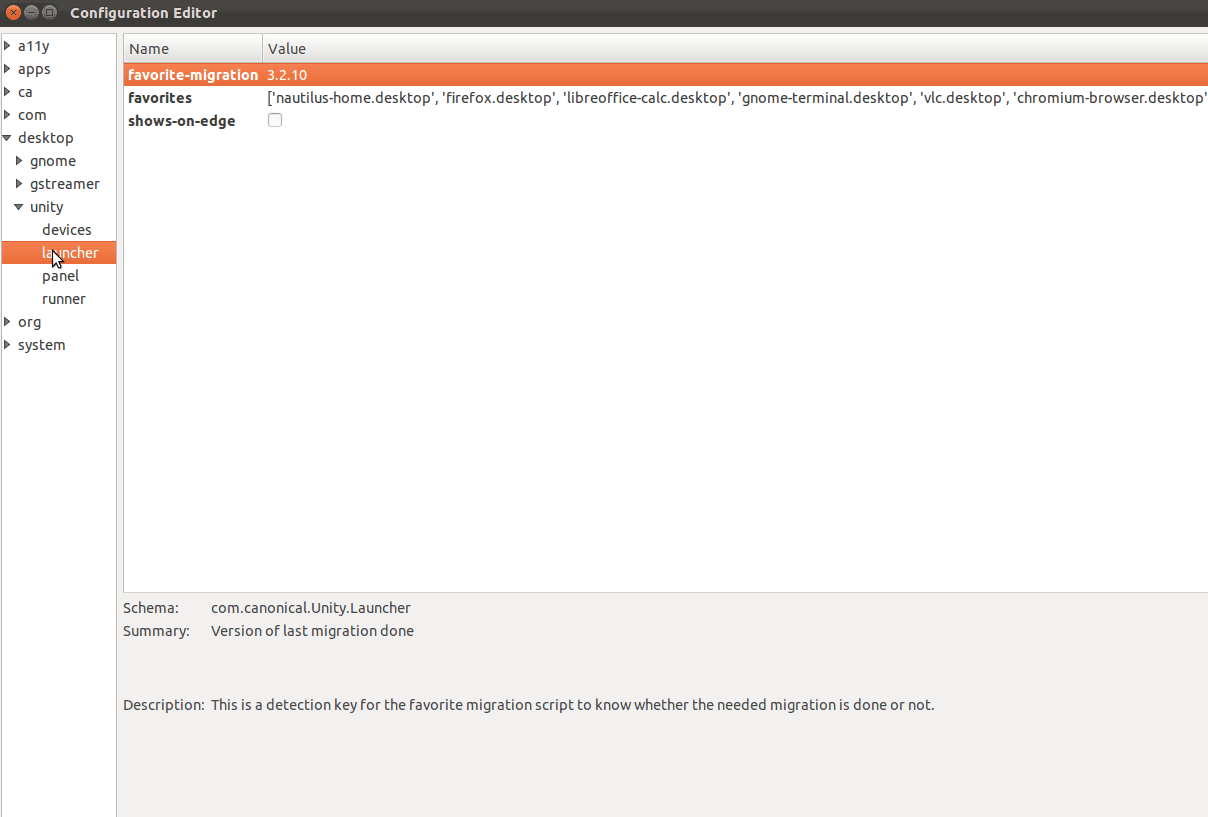
and then launched dconf-editor and navigated to ‘favorites’. As Bruno points out, I got foo.desktop at the end of the list taking care about , ‘ ‘ and ]. Logging in and out now shows a quick launcher for Foo in my Unity Bar
Nice post